



VINs / 2016 / RAM / 1500 / 1C6RR7GT8GS300588
2016 RAM 1500
Vin:
1C6RR7GT8GS300588
Type:
Pickup
Year:
2016
Make:
RAM
Model:
1500
Trim:
SLT
Series:
Single Rear Wheels
GVWR:
?

Engine
Fuel
Gasoline
Displacement(Liters)
5.7
Cylinders
8
Turbocharged
No
Drive Trian
Type
4WD/4-Wheel Drive/4x4
Manufacturer
Manufacturer
FCA US LLC
Plant Company
Warren Truck Assembly
Plant City
WARREN
Plant State
MICHIGAN
Plant Country
UNITED STATES (USA)
Safety Features
Air Bag Location(Front)
1st Row (Driver and Passenger)
Air Bag Location(Sides)
All Rows
Seat Belts(All)
Manual
Brake System Type
Hydraulic
Other Restraint System Info
Active Seat Belt
Do you manage a fleet?
FleetChaser will help you track:
- Mileage and maintenance
- Filling and expenses
- Real-time technical condition
Learn More
You'll never want to go back to how your fleet operated before Fleet Chaser
Our construction fleet management software makes your fleet management better, safer, and easier.
Construction and Fleet Management Articles
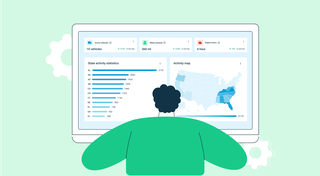
Managing fleets, tasks, and data just got a lot easier! The Fleet Chaser dashboard has been completely redesigned to improve usability and bring a game-changing feature: Customization.
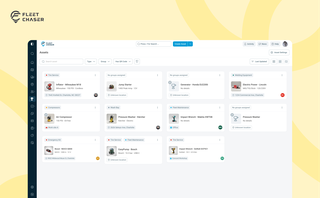
Assets is a new Console section for the things that are not vehicles. Give a tool a QR sticker, see where it was last scanned, and let your crew sign it out by filling a form on the phone.

Idle fleet vehicles draining money, drivers taking hour-long detours to lunch, traffic jams derailing schedules, maintenance issues snowballing into bills with multiple zeros… If you’re nodding along to these fleet management issues, you’re not alone.
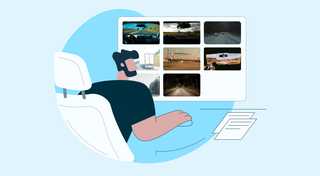
You know where your vehicle is. But do you know what's happening around it?
That's why we introduced the Cameras Overview tab in Fleet Chaser. Now, dispatchers, safety managers, or operations leads can quickly see exactly what's going on - directly through the cameras installed in your vehicles.
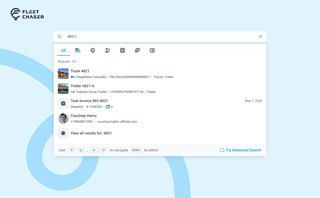
You shouldn't have to stop and figure out where to look for something in Fleet Chaser. You should be able to type its name and be on its page a second later. That's what we rebuilt Search around.
There are two searches now, and they're good at different things.
- Quick Search — the box in the top bar — is for getting somewhere fast.
- Advanced Search is for the times a name isn't enough: when you want to filter a list, search by something other than a name, or pull in archived records.
QR Codes are live in Fleet Chaser. Drivers scan a sticker on any vehicle to jump straight into the right inspection — no searching, no typing — and managers link a code to a vehicle right from the Console in seconds.
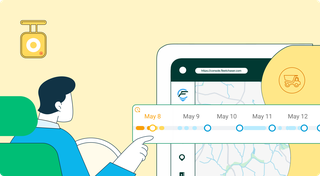
Discover our major updates to the Dash Camera section, designed to streamline your fleet management:
- Enhanced Camera Interface: Enjoy an updated design with a new timeline feature for easy video status tracking.
- Improved Live Section: Clearer status indicators for real-time camera monitoring.
- Upgraded Saved Media Section: Organized media tabs and date sorting for effortless access to your recordings.
Explore these new features for a more efficient fleet management experience.
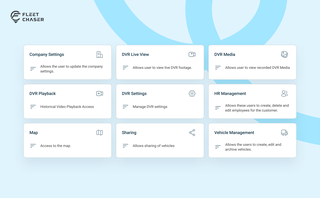
Permissions decide who on your team can see and do what. Admins can do everything; everyone else gets access through groups you build, so each role gets exactly what it needs and nothing more. Here is how to set it up in the Console under Employees.
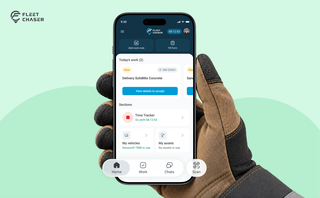
Every part of the Employee App's navigation moved: the bar along the bottom, the menu behind the hamburger, and the first screen your crew sees. The new one is built around the shift.