


VINs / 2017 / Chevrolet / Impala / 1G1105S33HU153977
2017 Chevrolet Impala
Vin:
1G1105S33HU153977
Type:
Sedan/Saloon
Year:
2017
Make:
Chevrolet
Model:
Impala
Trim:
LT (1LT)
GVWR:
?

Engine
Manufacturer
GM
Model
LFX - SIDI: Spark Ignited Direct injection, VVT, E85 MAX, ALUM
Fuel
Gasoline
Fuel(Secondary)
Ethanol (E85)
Displacement(Liters)
3.6
Cylinders
6
Top Speed(MPH)
102
Drive Trian
Axles
2
Wheels
4
Manufacturer
Manufacturer
GENERAL MOTORS LLC
Plant Company
GMNA
Plant City
DETROIT HAMTRAMCK
Plant State
MICHIGAN
Plant Country
UNITED STATES (USA)
Safety Features
Air Bag Location(Front)
1st Row (Driver and Passenger)
Air Bag Location(Sides)
1st and 2nd Rows
Seat Belts(All)
Manual
ABS (Antilock Braking System)
Standard
ESC (Electronic Stability Control)
Standard
Do you manage a fleet?
FleetChaser will help you track:
- Mileage and maintenance
- Filling and expenses
- Real-time technical condition
Learn More
You'll never want to go back to how your fleet operated before Fleet Chaser
Our construction fleet management software makes your fleet management better, safer, and easier.
Construction and Fleet Management Articles
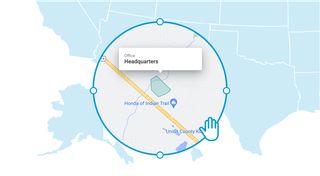
Geofencing leverages GPS or RFID technology to establish virtual perimeters around physical locations, granting fleet managers meticulous control and invaluable insights. It addresses concerns such as driver behavior monitoring, unauthorized asset use prevention, streamlined administrative tasks, load counting, and improved safety compliance. To gain a comprehensive understanding of the tangible benefits geofencing offers, let's delve deeper into its functionality.
QR Codes are live in Fleet Chaser. Drivers scan a sticker on any vehicle to jump straight into the right inspection — no searching, no typing — and managers link a code to a vehicle right from the Console in seconds.
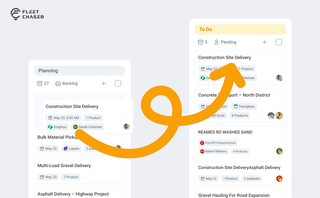
Most dispatchers still drag tomorrow's jobs onto the board every morning. Schedule Automation removes the ritual — set a rule on a workflow once, and planned tasks promote themselves onto the active board when their start time is near. It reacts when plans change, and you can still promote any job by hand in one click.
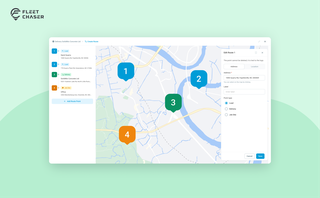
Route Planning turns a multi-stop job from "an address typed into the task description" into a real itinerary you draw on a map. Color-coded Load, Delivery, and Job Site checkpoints, drag to reorder, addresses or saved Locations, and an Employee App that walks the driver through the route in order — including the Job Site stops that hold the line until the work there is logged.
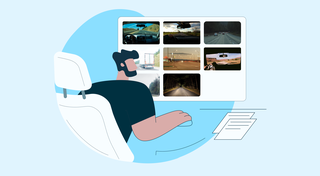
You know where your vehicle is. But do you know what's happening around it?
That's why we introduced the Cameras Overview tab in Fleet Chaser. Now, dispatchers, safety managers, or operations leads can quickly see exactly what's going on - directly through the cameras installed in your vehicles.
If you manage a large enterprise fleet with hundreds of vehicles, you face the daunting challenge of optimizing operations every day. Your fleet is a critical resource; however, costs can grow exponentially if the right approach isn’t applied. Hence, achieving efficiency is a top priority. The good news is that fleet management software can be your ally in streamlining operations and maximizing productivity.

Fleet Chaser chat keeps every conversation right next to the routes, tasks, and time clock your team already works in. Over the past few months we've made it clearer to use and steadier out in the field — reply to specific messages, share files with cleaner previews, and stay connected even when the signal drops.
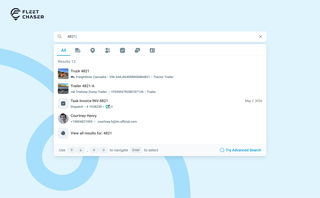
You shouldn't have to stop and figure out where to look for something in Fleet Chaser. You should be able to type its name and be on its page a second later. That's what we rebuilt Search around.
There are two searches now, and they're good at different things.
- Quick Search — the box in the top bar — is for getting somewhere fast.
- Advanced Search is for the times a name isn't enough: when you want to filter a list, search by something other than a name, or pull in archived records.
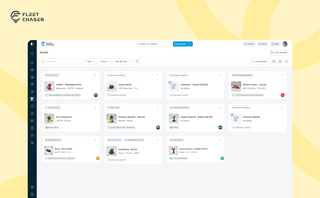
Assets is a new Console section for the things that are not vehicles. Give a tool a QR sticker, see where it was last scanned, and let your crew sign it out by filling a form on the phone.