



VINs / 2018 / Chevrolet / Traverse / 1GNEVHKW2JJ255422
2018 Chevrolet Traverse
Vin:
1GNEVHKW2JJ255422
Type:
Sport Utility Vehicle (SUV)/Multi-Purpose Vehicle (MPV)
Year:
2018
Make:
Chevrolet
Model:
Traverse
Trim:
LT
GVWR:
?
Engine
Manufacturer
GM
Model
LFY - Spark Ignited Direct injection, ATSS, GEN 1
Fuel
Gasoline
Displacement(Liters)
3.6
Cylinders
6
Configuration
V-Shaped
Top Speed(MPH)
130
Drive Trian
Type
AWD/All-Wheel Drive
Axles
2
Wheels
4
Manufacturer
Manufacturer
GENERAL MOTORS LLC
Plant Company
GMNA
Plant City
LANSING - DELTA TOWNSHIP
Plant State
MICHIGAN
Plant Country
UNITED STATES (USA)
Safety Features
Air Bag Location(Front)
1st Row (Driver and Passenger)
Air Bag Location(Sides)
1st Row (Driver and Passenger)
Seat Belts(All)
Manual
Brake System Type
Hydraulic
ABS (Antilock Braking System)
Standard
ESC (Electronic Stability Control)
Standard
Other Restraint System Info
Front Inboard Seat Side Airbag in First Row.
Do you manage a fleet?
FleetChaser will help you track:
- Mileage and maintenance
- Filling and expenses
- Real-time technical condition
Learn More
You'll never want to go back to how your fleet operated before Fleet Chaser
Our construction fleet management software makes your fleet management better, safer, and easier.
Construction and Fleet Management Articles
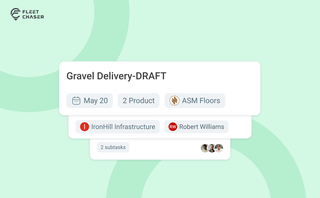
Setting up a real job takes a few minutes — a route, products, a crew, a schedule. Get interrupted halfway and that half-built task used to be gone. Drafts fix that: while you build a task, Fleet Chaser saves it automatically, so you can step away and pick up exactly where you left off. A draft stays private and silent — no task number, no notifications — until you press Create task.
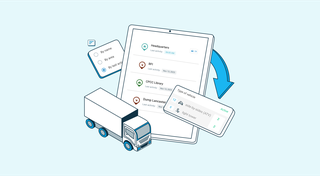
The last activity view is already in your account. This feature enables you to instantly view info on trucks’ activity in certain locations. No need to search info on the last activity manually: it will be displayed neatly right next to each location’s name. Stay updated and have a nice day ahead!

Unexpected downtime presents a tangible setback for your fleet. Not only is your asset now off the road, but you have to tweak your operations and allocate finances to accommodate for it.

But your drivers may need to be on board with that decision. How do you do what’s best for your drivers and fleet without harming driver trust while juggling legal concerns?
Not to worry. Here are crucial points to keep in mind in your efforts to equip your fleet with dash cams while preserving driver privacy:
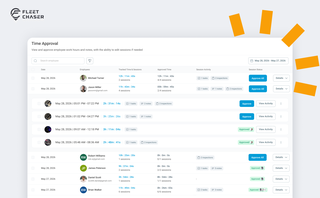
Time Approval now opens a full Session Details view of every shift before you sign off, and the new Pay Period screen turns approved hours into a click-to-pay workflow. Together they cover the whole stretch from clock-out to paycheck — without leaving Fleet Chaser.
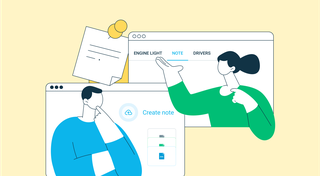
Ever needed to record specific vehicle information that you can’t quite assign to your existing data categories? With notes, important vehicle details are safe in one place, always at your disposal. This can be repair shop inspections, vehicle documents, legal information, etc.

In a fast-paced fleet management environment, staying on top of important updates is crucial. That’s why we are introducing Fleet Chaser Notifications—a centralized system designed to ensure you never miss critical alerts while avoiding unnecessary distractions.
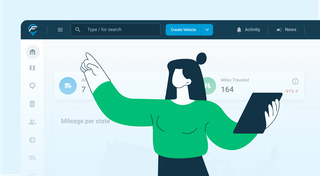
We’ve refreshed the platform’s look, focusing on a more user-friendly design. The new interface not only looks more attractive but is also designed to boost your productivity by making navigation simpler.
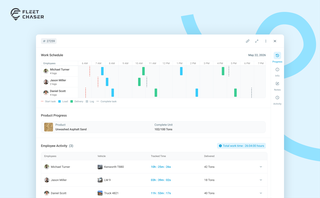
The Progress tab is the single place that shows how a task was actually worked — built from real entries drivers create as they go, not a summary someone reassembled later. A per-employee timeline, live per-product totals, and a filterable log of every load and delivery, with every edit kept on the activity log so corrections never erase the truth.