



VINs / 2018 / Freightliner / Cascadia / 3AKJGEDV0JSKC8236
2018 Freightliner Cascadia
Vin:
3AKJGEDV0JSKC8236
Type:
Truck-Tractor
Year:
2018
Make:
Freightliner
Model:
Cascadia
Trim:
125" sleeper cab
GVWR:
?

Engine
Model
Detroit DD13
Fuel
Diesel
Displacement(Liters)
12.8
Cylinders
6
Configuration
In-Line
Drive Trian
Type
6x4
Manufacturer
Manufacturer
DAIMLER VEHÍCULOS COMERCIALES MÉXICO S. DE R.L. DE C.V.
Plant City
SALTILLO
Plant State
COAHUILA
Plant Country
MEXICO
Safety Features
Brake System Type
Air
Do you manage a fleet?
FleetChaser will help you track:
- Mileage and maintenance
- Filling and expenses
- Real-time technical condition
Learn More
You'll never want to go back to how your fleet operated before Fleet Chaser
Our construction fleet management software makes your fleet management better, safer, and easier.
Construction and Fleet Management Articles
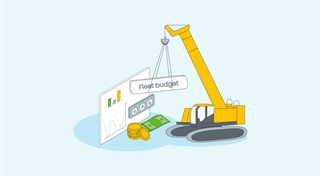
What does it take to develop a fleet management budget that will support you on the way to your business goals? In this short guide will cover the determining aspects you should keep in mind and strategies to employ when drawing up a fleet budget.
But first, let’s clarify — why is it imperative to have one? 🤔
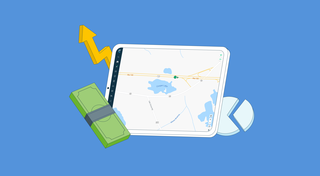
Fleet management requires the handling and analysis of numerous metrics and variables, which can quickly get out of hand and clutter your desk with piles of hard-to-access information. Compiling reports, communicating with employees, contractors, and drivers, etc., should be intuitive, all laid out in a simple, visual way.
This is where fleet management software comes in.
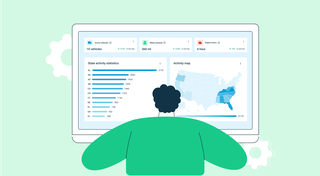
Managing fleets, tasks, and data just got a lot easier! The Fleet Chaser dashboard has been completely redesigned to improve usability and bring a game-changing feature: Customization.
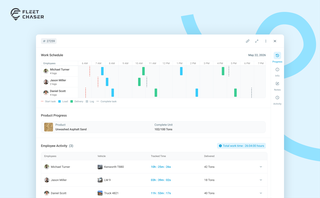
The Progress tab is the single place that shows how a task was actually worked — built from real entries drivers create as they go, not a summary someone reassembled later. A per-employee timeline, live per-product totals, and a filterable log of every load and delivery, with every edit kept on the activity log so corrections never erase the truth.

A construction dispatcher fields the same four calls all day — where are you, did you finish, when's the truck coming, which site. None are emergencies, but together they burn about two hours. Here's where the time goes — and the first call to move off the phone.
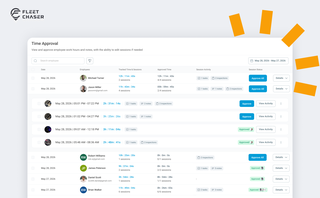
Time Approval now opens a full Session Details view of every shift before you sign off, and the new Pay Period screen turns approved hours into a click-to-pay workflow. Together they cover the whole stretch from clock-out to paycheck — without leaving Fleet Chaser.
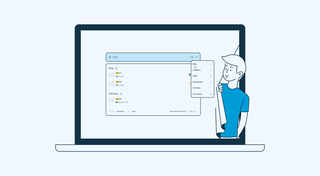
With simplified Global Search, every team member who will be interacting with the software will save valuable time — and, in the long run, all those shortcuts add up, enabling you to focus longer on making crucial decisions for business prosperity, rather than just managing operations.

Some jobs are too big for one driver. Multi-assignee tasks let you put the whole crew on a single task — each person with their own vehicle, status, and progress — while loads and deliveries are counted automatically into one shared total.
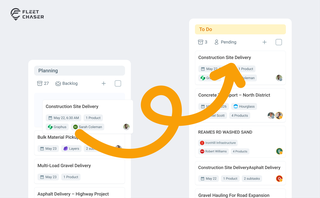
Most dispatchers still drag tomorrow's jobs onto the board every morning. Schedule Automation removes the ritual — set a rule on a workflow once, and planned tasks promote themselves onto the active board when their start time is near. It reacts when plans change, and you can still promote any job by hand in one click.