


VINs / 2021 / Hyundai / Santa Fe / KM8S3DA1XMU010589
2021 Hyundai Santa Fe
Vin:
KM8S3DA1XMU010589
Type:
Sport Utility Vehicle (SUV)/Multi-Purpose Vehicle (MPV)
Year:
2021
Make:
Hyundai
Model:
Santa Fe
Trim:
SEL Premium
GVWR:
?

Engine
Manufacturer
Hyundai Motor Company
Model
T-GDI Gamma-II
Fuel
Gasoline
Fuel(Secondary)
Electric
Horse Power
177.2
Displacement(Liters)
1.6
Cylinders
4
Turbocharged
Yes
Electrification Level
HEV (Hybrid Electric Vehicle) - Level Unknown
Drive Trian
Type
4WD/4-Wheel Drive/4x4
Axles
2
Wheels
4
Manufacturer
Manufacturer
HYUNDAI MOTOR CO
Plant City
ULSAN
Plant Country
SOUTH KOREA
Safety Features
Air Bag Location(Front)
1st Row (Driver and Passenger)
Air Bag Location(Sides)
1st Row (Driver and Passenger)
Seat Belts(All)
Manual
ABS (Antilock Braking System)
Standard
ESC (Electronic Stability Control)
Standard
Other Restraint System Info
Seat Belt: All Positions
Do you manage a fleet?
FleetChaser will help you track:
- Mileage and maintenance
- Filling and expenses
- Real-time technical condition
Learn More
You'll never want to go back to how your fleet operated before Fleet Chaser
Our construction fleet management software makes your fleet management better, safer, and easier.
Construction and Fleet Management Articles
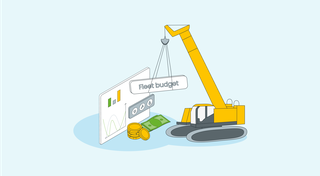
What does it take to develop a fleet management budget that will support you on the way to your business goals? In this short guide will cover the determining aspects you should keep in mind and strategies to employ when drawing up a fleet budget.
But first, let’s clarify — why is it imperative to have one? 🤔
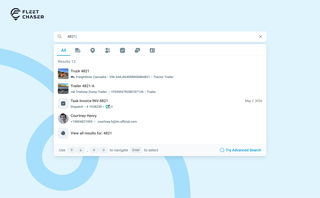
You shouldn't have to stop and figure out where to look for something in Fleet Chaser. You should be able to type its name and be on its page a second later. That's what we rebuilt Search around.
There are two searches now, and they're good at different things.
- Quick Search — the box in the top bar — is for getting somewhere fast.
- Advanced Search is for the times a name isn't enough: when you want to filter a list, search by something other than a name, or pull in archived records.
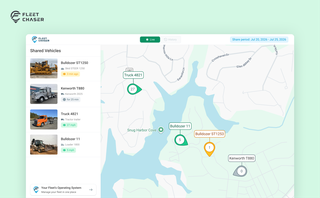
Live Share update: share a vehicle by link and let your customer see not just the live map, but the route history for the exact days you worked their site.
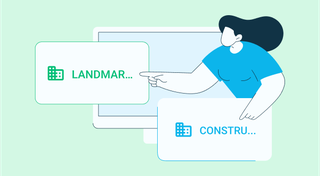
Managing multiple companies can be a challenge, especially when you constantly need to log in and out of different accounts. Previously, Fleet Chaser users were limited to managing just one company at a time. If you worked for more than one company, switching between them required logging out and logging in again, which was time-consuming and inconvenient.
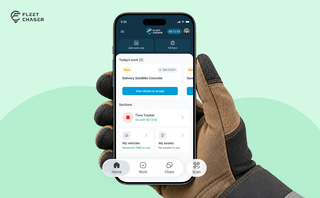
Every part of the Employee App's navigation moved: the bar along the bottom, the menu behind the hamburger, and the first screen your crew sees. The new one is built around the shift.
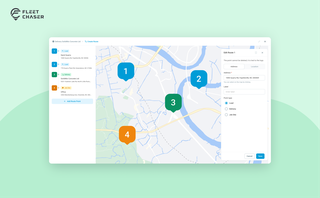
Route Planning turns a multi-stop job from "an address typed into the task description" into a real itinerary you draw on a map. Color-coded Load, Delivery, and Job Site checkpoints, drag to reorder, addresses or saved Locations, and an Employee App that walks the driver through the route in order — including the Job Site stops that hold the line until the work there is logged.
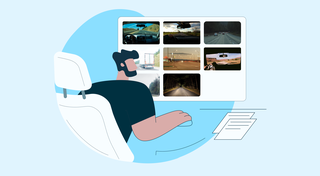
You know where your vehicle is. But do you know what's happening around it?
That's why we introduced the Cameras Overview tab in Fleet Chaser. Now, dispatchers, safety managers, or operations leads can quickly see exactly what's going on - directly through the cameras installed in your vehicles.
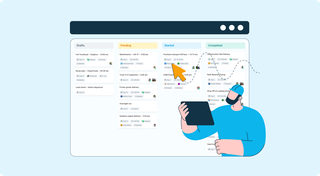
The way teams collaborate is changing. Whether you're coordinating field crews, managing office projects, or overseeing multi-location operations, the old methods of sticky notes, phone calls, and endless email chains just don't cut it anymore.
We're excited to announce the launch of Tasks – a revolutionary feature that transforms how your entire organization plans, assigns, and completes work. This isn't just about field operations; it's about creating seamless workflows across every department, every role, and every location in your business.
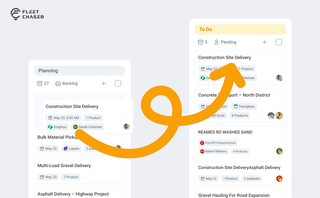
Most dispatchers still drag tomorrow's jobs onto the board every morning. Schedule Automation removes the ritual — set a rule on a workflow once, and planned tasks promote themselves onto the active board when their start time is near. It reacts when plans change, and you can still promote any job by hand in one click.