


VINs / 2021 / Nissan / Rogue / 5N1AT3BB1MC728129
2021 Nissan Rogue
Vin:
5N1AT3BB1MC728129
Type:
Sport Utility Vehicle (SUV)/Multi-Purpose Vehicle (MPV)
Year:
2021
Make:
Nissan
Model:
Rogue
Trim:
Grade SV
GVWR:
?

Engine
Fuel
Gasoline
Displacement(Liters)
2.5
Drive Trian
Type
4WD/4-Wheel Drive/4x4
Axles
2
Wheels
4
Manufacturer
Manufacturer
NISSAN NORTH AMERICA, INC.
Plant Company
Nissan North America Inc.
Plant City
SMYRNA
Plant State
TENNESSEE
Plant Country
UNITED STATES (USA)
Safety Features
Air Bag Location(Front)
1st Row (Driver and Passenger)
Air Bag Location(Sides)
1st and 2nd Rows
Seat Belts(All)
Manual
ABS (Antilock Braking System)
Standard
ESC (Electronic Stability Control)
Standard
Other Restraint System Info
1st Row 3-Point Manual Belts / 2nd Row outboard 3-Point Manual Belts / 2nd Row center 3-Point Manual Belts
Do you manage a fleet?
FleetChaser will help you track:
- Mileage and maintenance
- Filling and expenses
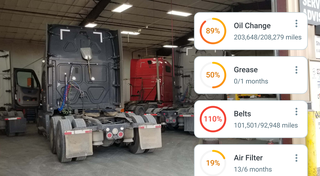
- Real-time technical condition
Learn More
You'll never want to go back to how your fleet operated before Fleet Chaser
Our construction fleet management software makes your fleet management better, safer, and easier.
Construction and Fleet Management Articles
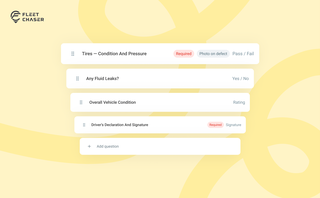
Forms is live in the Console, and the questions in it are yours. Write what your business needs to know, point it at the trucks it applies to, and publish.
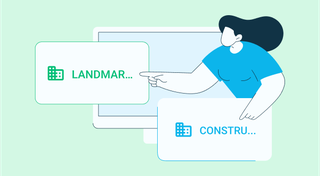
Managing multiple companies can be a challenge, especially when you constantly need to log in and out of different accounts. Previously, Fleet Chaser users were limited to managing just one company at a time. If you worked for more than one company, switching between them required logging out and logging in again, which was time-consuming and inconvenient.
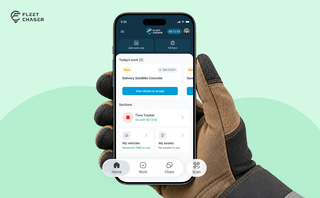
Every part of the Employee App's navigation moved: the bar along the bottom, the menu behind the hamburger, and the first screen your crew sees. The new one is built around the shift.
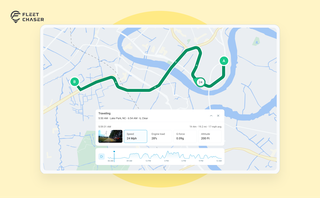
The map's History view is now a full replay of a vehicle's day. Pick a date to see the whole route, a timeline of every trip, stop, and idle, and replay it second by second with speed, engine, altitude, and camera data - plus power and battery health on the Details tab.
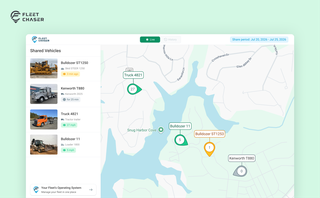
Live Share update: share a vehicle by link and let your customer see not just the live map, but the route history for the exact days you worked their site.

Fleet Chaser: Liquid Metal Design Philosophy
At Fleet Chaser, our design philosophy embodies clarity, resilience, and adaptability, much like liquid metal—a substance strong enough for rigorous demands yet fluid sufficient to mold effortlessly around your unique business needs. Here's how this philosophy translates into our interface and functionalities.
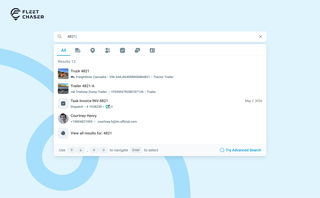
You shouldn't have to stop and figure out where to look for something in Fleet Chaser. You should be able to type its name and be on its page a second later. That's what we rebuilt Search around.
There are two searches now, and they're good at different things.
- Quick Search — the box in the top bar — is for getting somewhere fast.
- Advanced Search is for the times a name isn't enough: when you want to filter a list, search by something other than a name, or pull in archived records.
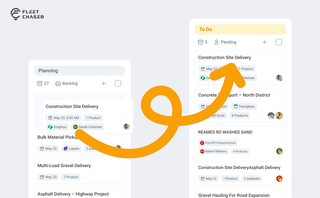
Most dispatchers still drag tomorrow's jobs onto the board every morning. Schedule Automation removes the ritual — set a rule on a workflow once, and planned tasks promote themselves onto the active board when their start time is near. It reacts when plans change, and you can still promote any job by hand in one click.