


VINs / 2022 / Infiniti / Q50 / JN1EV7CR5NM341603
2022 Infiniti Q50
Vin:
JN1EV7CR5NM341603
Type:
Sedan/Saloon
Year:
2022
Make:
Infiniti
Model:
Q50
Trim:
Grade SENSORY
GVWR:
?

Engine
Model
3.0L T
Fuel
Gasoline
Displacement(Liters)
3.0
Drive Trian
Type
4WD/4-Wheel Drive/4x4
Manufacturer
Manufacturer
NISSAN MOTOR COMPANY, LTD
Plant Company
Nissan Motor Company, Ltd.
Plant City
TOCHIGI PLANT, KAWACHI-GUN
Plant State
TOCHIGI
Plant Country
JAPAN
Safety Features
Air Bag Location(Front)
1st Row (Driver and Passenger)
Air Bag Location(Sides)
1st Row (Driver and Passenger)
Seat Belts(All)
Manual
ABS (Antilock Braking System)
Standard
ESC (Electronic Stability Control)
Standard
Other Restraint System Info
1st Row 3-Point Manual Belts / 3-Point Manual Belts, 2nd Row outboard 3-Point Manual Belts, 2nd Row center 3-Point Manual Belts
Do you manage a fleet?
FleetChaser will help you track:
- Mileage and maintenance
- Filling and expenses
- Real-time technical condition
Learn More
You'll never want to go back to how your fleet operated before Fleet Chaser
Our construction fleet management software makes your fleet management better, safer, and easier.
Construction and Fleet Management Articles

Reventive maintenance is paramount to sustaining your fleet’s health and minimizing downtime. It’s crucial to have a solid preventive protocol to ensure your vehicles are in top shape for as long as possible; however, creating a preventive maintenance plan or schedule from scratch is impossible without the right tools.
We advise fleet managers/owners to get familiar with the best practices you can implement to optimize fleet downtime prevention.
We’ve listed down five most crucial tips: save them to make sure your business is on its way to growth!
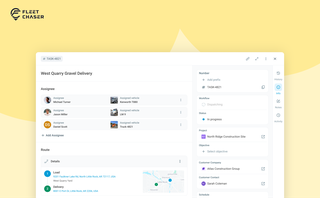
In most operations, the plan and the work live in different places. The plan's on a board, or in a dispatcher's head. The work's out on a site, in a truck, spread across locations. And whatever actually happened comes back later in pieces — a phone call, a half-remembered note, a photo that never got sent.
Tasks v2 closes that gap. You set up the work the way your business runs it, your crew does it from their phone, and when it's done you open the task and see exactly how it went — who did what, when, how much — without calling anyone to ask.
It doesn't much matter whether you dispatch field crews, haul materials between sites, run service calls, or coordinate office work across locations. The point of Tasks v2 is that it bends to your process instead of forcing you into someone else's.
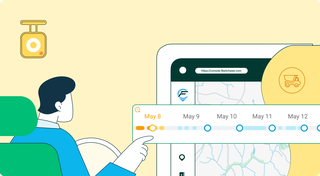
Discover our major updates to the Dash Camera section, designed to streamline your fleet management:
- Enhanced Camera Interface: Enjoy an updated design with a new timeline feature for easy video status tracking.
- Improved Live Section: Clearer status indicators for real-time camera monitoring.
- Upgraded Saved Media Section: Organized media tabs and date sorting for effortless access to your recordings.
Explore these new features for a more efficient fleet management experience.
You’ve got all this data coming from your fleet vehicles on maintenance, fuel, and mileage, but it feels like navigating through a maze with no map to guide you. You know tracking the right fleet metrics is crucial, but where do you even begin and what really matters? Read this article to learn about the key KPIs that tell you whether your fleet is on track or heading for trouble.
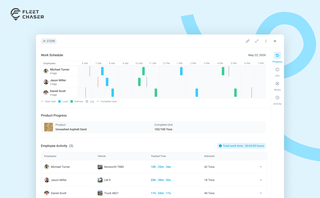
The Progress tab is the single place that shows how a task was actually worked — built from real entries drivers create as they go, not a summary someone reassembled later. A per-employee timeline, live per-product totals, and a filterable log of every load and delivery, with every edit kept on the activity log so corrections never erase the truth.
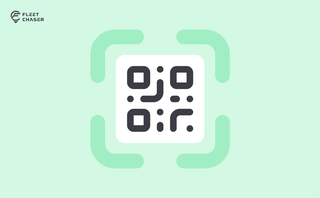
QR Codes are live in Fleet Chaser. Drivers scan a sticker on any vehicle to jump straight into the right inspection — no searching, no typing — and managers link a code to a vehicle right from the Console in seconds.

Some jobs are too big for one driver. Multi-assignee tasks let you put the whole crew on a single task — each person with their own vehicle, status, and progress — while loads and deliveries are counted automatically into one shared total.
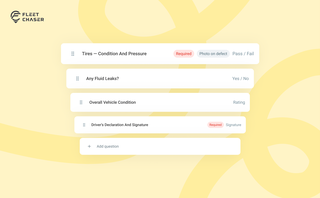
Forms is live in the Console, and the questions in it are yours. Write what your business needs to know, point it at the trucks it applies to, and publish.
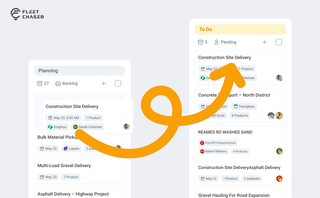
Most dispatchers still drag tomorrow's jobs onto the board every morning. Schedule Automation removes the ritual — set a rule on a workflow once, and planned tasks promote themselves onto the active board when their start time is near. It reacts when plans change, and you can still promote any job by hand in one click.