



VINs / 2022 / Toyota / Corolla / 5YFEPMAE0NP359512
2022 Toyota Corolla
Vin:
5YFEPMAE0NP359512
Type:
Sedan/Saloon
Year:
2022
Make:
Toyota
Model:
Corolla
Trim:
LE
Series:
ZRE212L
GVWR:
?

Engine
Manufacturer
Toyota
Model
2ZR-FAE
Fuel
Gasoline
Fuel Injection Type
Sequential Fuel Injection (SFI)
Horse Power
139
Displacement(Liters)
1.8
Cylinders
4
Cycles
4
Configuration
In-Line
Drive Trian
Type
4x2
Manufacturer
Manufacturer
TOYOTA MOTOR MANUFACTURING, MISSISSIPPI, INC.
Plant Company
Toyota Motor Manufacturing, Mississippi, Inc.
Plant City
BLUE SPRINGS
Plant State
MISSISSIPPI
Plant Country
UNITED STATES (USA)
Safety Features
Air Bag Location(Front)
1st Row (Driver and Passenger)
Air Bag Location(Sides)
1st and 2nd Rows
Seat Belts(All)
Manual
ABS (Antilock Braking System)
Standard
ESC (Electronic Stability Control)
Standard
Other Restraint System Info
Seat Belt: All seats
Do you manage a fleet?
FleetChaser will help you track:
- Mileage and maintenance
- Filling and expenses
- Real-time technical condition
Learn More
You'll never want to go back to how your fleet operated before Fleet Chaser
Our construction fleet management software makes your fleet management better, safer, and easier.
Construction and Fleet Management Articles

Managing a fleet is not just about tracking vehicles—it’s about staying informed, reacting instantly to critical events, and making better business decisions. That’s why we are launching the Fleet Chaser Event System, a powerful, customizable tool that lets you create rules tailored specifically to your company’s needs and receive real-time alerts when key events occur.
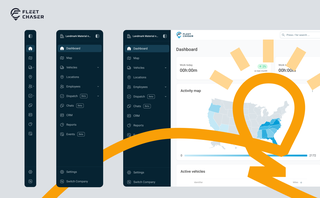
Fleet Chaser navigation just got an upgrade — dark theme, grouped sections, and a collapsible sidebar with 3 states. Here's what changed and where things moved.

In a fast-paced fleet management environment, staying on top of important updates is crucial. That’s why we are introducing Fleet Chaser Notifications—a centralized system designed to ensure you never miss critical alerts while avoiding unnecessary distractions.
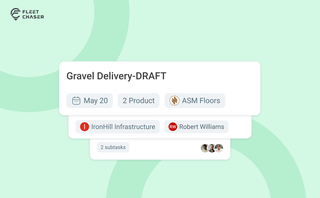
Setting up a real job takes a few minutes — a route, products, a crew, a schedule. Get interrupted halfway and that half-built task used to be gone. Drafts fix that: while you build a task, Fleet Chaser saves it automatically, so you can step away and pick up exactly where you left off. A draft stays private and silent — no task number, no notifications — until you press Create task.
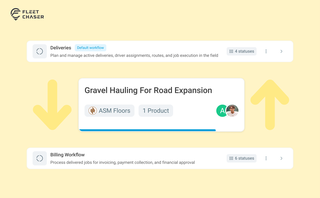
Work doesn’t stop at one team. Transfer in Fleet Chaser hands a task from one workflow to another in a single move, keeping every product, attachment, and activity-log entry attached. No re-typing, no lost history.
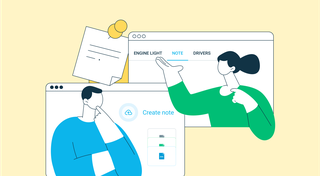
Ever needed to record specific vehicle information that you can’t quite assign to your existing data categories? With notes, important vehicle details are safe in one place, always at your disposal. This can be repair shop inspections, vehicle documents, legal information, etc.
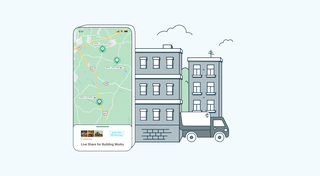
Hi folks! Let us brighten up your mood :)
We're excited to introduce Live Share, enabling real-time sharing of vehicle information with your customers.
Customers in the dark about their delivery? Customers don’t know where the truck is? Partner companies can’t access vehicle status? These are hurdles of the past!
With Live Share, you can now effortlessly share your vehicles with customers, partners, and colleagues in a secure and customizable manner.
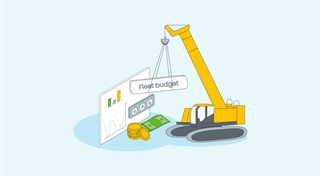
What does it take to develop a fleet management budget that will support you on the way to your business goals? In this short guide will cover the determining aspects you should keep in mind and strategies to employ when drawing up a fleet budget.
But first, let’s clarify — why is it imperative to have one? 🤔

Imagine it’s a Monday morning, and your fleet of 100 construction vehicles is ready to hit the road. You’ve got a bunch of active job orders, and one of them is pretty critical: your concrete mixer truck needs to be at a construction site by 8 a.m. sharp.