



VINs / 2024 / Mitsubishi / Mirage G4 / ML32FUFJ3RHF10040
2024 Mitsubishi Mirage G4
Vin:
ML32FUFJ3RHF10040
Type:
Sedan/Saloon
Year:
2024
Make:
Mitsubishi
Model:
Mirage G4
Trim:
ES, LE, BE
GVWR:
?

Engine
Model
MIVEC
Fuel
Gasoline
Horse Power
78
Displacement(Liters)
1.2
Cylinders
3
Configuration
In-Line
Drive Trian
Type
FWD/Front-Wheel Drive
Manufacturer
Manufacturer
MITSUBISHI MOTORS CORPORATION (MMC)
Plant Company
LEAMCHABANG
Plant City
SRIRACHA COUNTY
Plant State
CHONBURI PREFECTURE
Plant Country
THAILAND
Safety Features
Air Bag Location(Front)
1st Row (Driver and Passenger)
Air Bag Location(Sides)
1st and 2nd Rows
Seat Belts(All)
Manual
ABS (Antilock Braking System)
Standard
ESC (Electronic Stability Control)
Standard
Other Restraint System Info
Seat Belts: All designated seating position / Curtain AB + Seat mounted AB
Do you manage a fleet?
FleetChaser will help you track:
- Mileage and maintenance
- Filling and expenses
- Real-time technical condition
Learn More
You'll never want to go back to how your fleet operated before Fleet Chaser
Our construction fleet management software makes your fleet management better, safer, and easier.
Construction and Fleet Management Articles
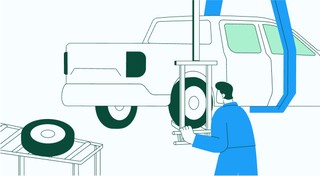
Keeping your trucks on the road means keeping your business running. A single defect can pose a major setback to your fleet, sacrificing time, money, and customer satisfaction. “Prevention is better than cure” applies here pretty much.
That’s why extending the lifetime of your trucks boils down to preventive maintenance: knowing what type of issues are likely to arise and addressing them early on.
Take a proactive approach to your truck’s upkeep and find out how to avoid the five most common breakdown causes.

We've launched Time Clock, a fully integrated system that lets employees track their time with clarity — and gives managers the tools to approve and manage everything without the guesswork.
Built into both the Employee App and the Console, this feature helps eliminate timesheet chaos and brings structure to your team's day-to-day work tracking.
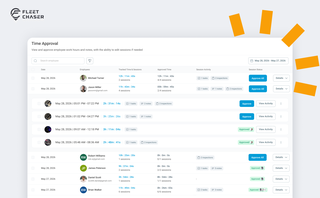
Time Approval now opens a full Session Details view of every shift before you sign off, and the new Pay Period screen turns approved hours into a click-to-pay workflow. Together they cover the whole stretch from clock-out to paycheck — without leaving Fleet Chaser.
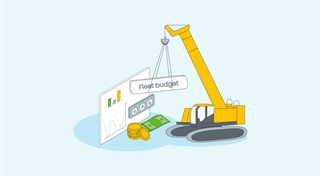
What does it take to develop a fleet management budget that will support you on the way to your business goals? In this short guide will cover the determining aspects you should keep in mind and strategies to employ when drawing up a fleet budget.
But first, let’s clarify — why is it imperative to have one? 🤔

Fleet Chaser chat keeps every conversation right next to the routes, tasks, and time clock your team already works in. Over the past few months we've made it clearer to use and steadier out in the field — reply to specific messages, share files with cleaner previews, and stay connected even when the signal drops.
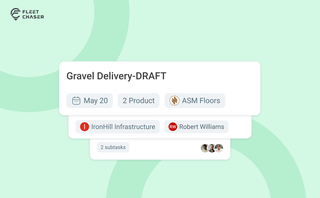
Setting up a real job takes a few minutes — a route, products, a crew, a schedule. Get interrupted halfway and that half-built task used to be gone. Drafts fix that: while you build a task, Fleet Chaser saves it automatically, so you can step away and pick up exactly where you left off. A draft stays private and silent — no task number, no notifications — until you press Create task.
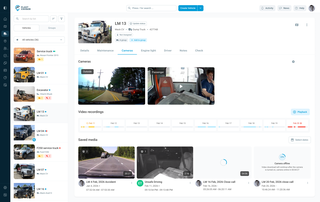
New Fleet Chaser Cameras experience: faster Playback, recording history by day, and Request video to save clips to Saved media for reliable downloads and proof storage.

Managing a fleet is not just about tracking vehicles—it’s about staying informed, reacting instantly to critical events, and making better business decisions. That’s why we are launching the Fleet Chaser Event System, a powerful, customizable tool that lets you create rules tailored specifically to your company’s needs and receive real-time alerts when key events occur.
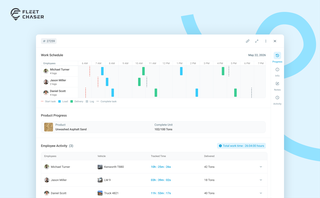
The Progress tab is the single place that shows how a task was actually worked — built from real entries drivers create as they go, not a summary someone reassembled later. A per-employee timeline, live per-product totals, and a filterable log of every load and delivery, with every edit kept on the activity log so corrections never erase the truth.