



VINs / 2009 / GMC / C5 / 1GDG5C3929F406332
2009 GMC C5
Vin:
1GDG5C3929F406332
Year:
2009
Make:
GMC
Model:
C5
Series:
5000 Medium Duty
GVWR:
?
Engine
Manufacturer
GM
Model
LMM
Fuel
Diesel
Displacement(Liters)
6.6
Cylinders
8
Configuration
V-Shaped
Drive Trian
Type
4WD/4-Wheel Drive/4x4
Axles
2
Manufacturer
Manufacturer
GENERAL MOTORS LLC
Plant City
FLINT
Plant State
MICHIGAN
Plant Country
UNITED STATES (USA)
Safety Features
Brake System Type
Hydraulic
Do you manage a fleet?
FleetChaser will help you track:
- Mileage and maintenance
- Filling and expenses
- Real-time technical condition
Learn More
You'll never want to go back to how your fleet operated before Fleet Chaser
Our construction fleet management software makes your fleet management better, safer, and easier.
Construction and Fleet Management Articles
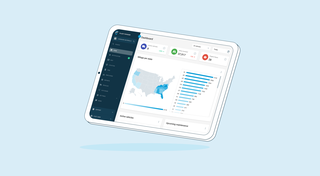
We’re thrilled to present new navigation in Fleet Chaser.
The new navigation not only streamlines your workflow, but also helps us roll out all the new features: notifications, dispatching, maintenance work orders, and more.
The new navigation is available in your user account, log in and check it out. 🌝
Hover over the toolbar or to the main workspace. Both sections will unfold, making it convenient to work in every one of them. The maps will also unfold, providing a larger view to see every little detail.
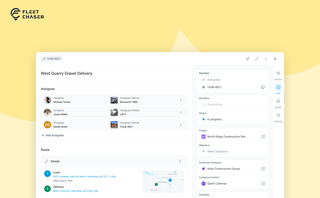
In most operations, the plan and the work live in different places. The plan's on a board, or in a dispatcher's head. The work's out on a site, in a truck, spread across locations. And whatever actually happened comes back later in pieces — a phone call, a half-remembered note, a photo that never got sent.
Tasks v2 closes that gap. You set up the work the way your business runs it, your crew does it from their phone, and when it's done you open the task and see exactly how it went — who did what, when, how much — without calling anyone to ask.
It doesn't much matter whether you dispatch field crews, haul materials between sites, run service calls, or coordinate office work across locations. The point of Tasks v2 is that it bends to your process instead of forcing you into someone else's.
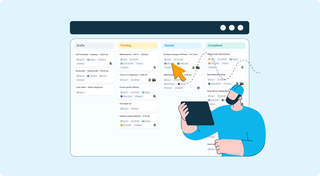
The way teams collaborate is changing. Whether you're coordinating field crews, managing office projects, or overseeing multi-location operations, the old methods of sticky notes, phone calls, and endless email chains just don't cut it anymore.
We're excited to announce the launch of Tasks – a revolutionary feature that transforms how your entire organization plans, assigns, and completes work. This isn't just about field operations; it's about creating seamless workflows across every department, every role, and every location in your business.
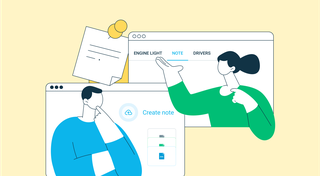
Ever needed to record specific vehicle information that you can’t quite assign to your existing data categories? With notes, important vehicle details are safe in one place, always at your disposal. This can be repair shop inspections, vehicle documents, legal information, etc.
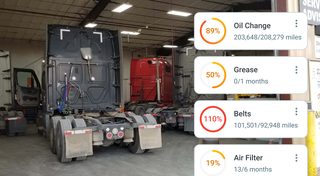

Hi folks! Let us brighten up your mood :)
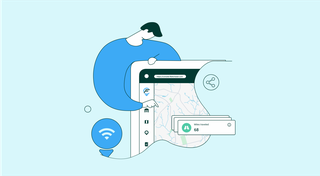
We're excited to introduce Live Share, enabling real-time sharing of vehicle information with your customers.
Customers in the dark about their delivery? Customers don’t know where the truck is? Partner companies can’t access vehicle status? These are hurdles of the past!
With Live Share, you can now effortlessly share your vehicles with customers, partners, and colleagues in a secure and customizable manner.
Finding useful data and utilizing it properly is a stepping stone towards running an efficient fleet. However, many fleet management systems are unoptimized, and crucial data either gets lost or underused. With fleet management software, working with fleet data is incredibly easier and more straightforward, eliminating manual work and boosting business efficiency.

Imagine it’s a Monday morning, and your fleet of 100 construction vehicles is ready to hit the road. You’ve got a bunch of active job orders, and one of them is pretty critical: your concrete mixer truck needs to be at a construction site by 8 a.m. sharp.
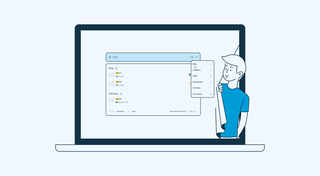
With simplified Global Search, every team member who will be interacting with the software will save valuable time — and, in the long run, all those shortcuts add up, enabling you to focus longer on making crucial decisions for business prosperity, rather than just managing operations.