


VINs / 2010 / Subaru / Outback / 4S4BRBKC5A3370972
2010 Subaru Outback
Vin:
4S4BRBKC5A3370972
Type:
Sport Utility Vehicle (SUV)/Multi-Purpose Vehicle (MPV)
Year:
2010
Make:
Subaru
Model:
Outback
Trim:
Limited+M/R+6CD HK
GVWR:
?

Engine
Manufacturer
Subaru
Model
2.5NA U5
Fuel
Gasoline
Displacement(Liters)
2.5
Cylinders
4
Configuration
Horizontally opposed (boxer)
Turbocharged
No
Drive Trian
Type
AWD/All-Wheel Drive
Manufacturer
Manufacturer
SUBARU OF AMERICA, INC
Plant Company
SIA
Plant City
LAFAYETTE
Plant State
INDIANA
Plant Country
UNITED STATES (USA)
Safety Features
Air Bag Location(Front)
1st Row (Driver and Passenger)
Air Bag Location(Sides)
1st Row (Driver and Passenger)
Seat Belts(All)
Manual
Do you manage a fleet?
FleetChaser will help you track:
- Mileage and maintenance
- Filling and expenses
- Real-time technical condition
Learn More
You'll never want to go back to how your fleet operated before Fleet Chaser
Our construction fleet management software makes your fleet management better, safer, and easier.
Construction and Fleet Management Articles
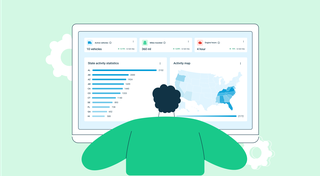
Managing fleets, tasks, and data just got a lot easier! The Fleet Chaser dashboard has been completely redesigned to improve usability and bring a game-changing feature: Customization.
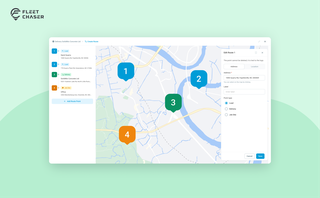
Route Planning turns a multi-stop job from "an address typed into the task description" into a real itinerary you draw on a map. Color-coded Load, Delivery, and Job Site checkpoints, drag to reorder, addresses or saved Locations, and an Employee App that walks the driver through the route in order — including the Job Site stops that hold the line until the work there is logged.
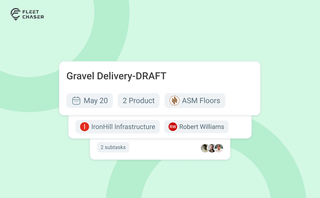
Setting up a real job takes a few minutes — a route, products, a crew, a schedule. Get interrupted halfway and that half-built task used to be gone. Drafts fix that: while you build a task, Fleet Chaser saves it automatically, so you can step away and pick up exactly where you left off. A draft stays private and silent — no task number, no notifications — until you press Create task.
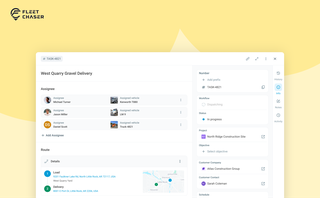
In most operations, the plan and the work live in different places. The plan's on a board, or in a dispatcher's head. The work's out on a site, in a truck, spread across locations. And whatever actually happened comes back later in pieces — a phone call, a half-remembered note, a photo that never got sent.
Tasks v2 closes that gap. You set up the work the way your business runs it, your crew does it from their phone, and when it's done you open the task and see exactly how it went — who did what, when, how much — without calling anyone to ask.
It doesn't much matter whether you dispatch field crews, haul materials between sites, run service calls, or coordinate office work across locations. The point of Tasks v2 is that it bends to your process instead of forcing you into someone else's.
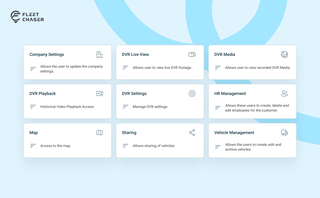
Permissions decide who on your team can see and do what. Admins can do everything; everyone else gets access through groups you build, so each role gets exactly what it needs and nothing more. Here is how to set it up in the Console under Employees.
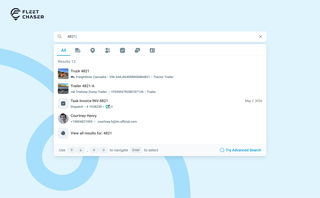
You shouldn't have to stop and figure out where to look for something in Fleet Chaser. You should be able to type its name and be on its page a second later. That's what we rebuilt Search around.
There are two searches now, and they're good at different things.
- Quick Search — the box in the top bar — is for getting somewhere fast.
- Advanced Search is for the times a name isn't enough: when you want to filter a list, search by something other than a name, or pull in archived records.

Fleet Chaser: Liquid Metal Design Philosophy
At Fleet Chaser, our design philosophy embodies clarity, resilience, and adaptability, much like liquid metal—a substance strong enough for rigorous demands yet fluid sufficient to mold effortlessly around your unique business needs. Here's how this philosophy translates into our interface and functionalities.
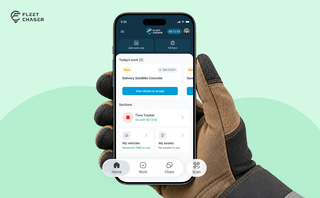
Every part of the Employee App's navigation moved: the bar along the bottom, the menu behind the hamburger, and the first screen your crew sees. The new one is built around the shift.
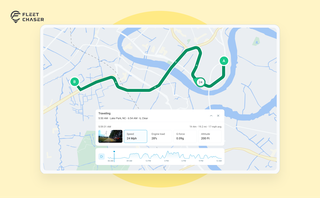
The map's History view is now a full replay of a vehicle's day. Pick a date to see the whole route, a timeline of every trip, stop, and idle, and replay it second by second with speed, engine, altitude, and camera data - plus power and battery health on the Details tab.