


VINs / 2023 / Chevrolet / Malibu / 1G1ZD5ST8PF128700
2023 Chevrolet Malibu
Vin:
1G1ZD5ST8PF128700
Type:
Sedan/Saloon
Year:
2023
Make:
Chevrolet
Model:
Malibu
Trim:
LT (1LT)
GVWR:
?
Engine
Model
LFV
Fuel
Gasoline
Displacement(Liters)
1.5
Cylinders
4
Configuration
In-Line
Turbocharged
Yes
Manufacturer
Manufacturer
GENERAL MOTORS LLC
Plant Company
Fairfax Assembly
Plant City
KANSAS CITY
Plant State
KANSAS
Plant Country
UNITED STATES (USA)
Safety Features
Air Bag Location(Front)
1st Row (Driver and Passenger)
Air Bag Location(Sides)
1st and 2nd Rows
Seat Belts(All)
Manual
ABS (Antilock Braking System)
Standard
ESC (Electronic Stability Control)
Standard
Other Restraint System Info
AYF - Active Manual Belts
Do you manage a fleet?
FleetChaser will help you track:
- Mileage and maintenance
- Filling and expenses
- Real-time technical condition
Learn More
You'll never want to go back to how your fleet operated before Fleet Chaser
Our construction fleet management software makes your fleet management better, safer, and easier.
Construction and Fleet Management Articles

Reventive maintenance is paramount to sustaining your fleet’s health and minimizing downtime. It’s crucial to have a solid preventive protocol to ensure your vehicles are in top shape for as long as possible; however, creating a preventive maintenance plan or schedule from scratch is impossible without the right tools.
We advise fleet managers/owners to get familiar with the best practices you can implement to optimize fleet downtime prevention.
We’ve listed down five most crucial tips: save them to make sure your business is on its way to growth!

Finding useful data and utilizing it properly is a stepping stone towards running an efficient fleet. However, many fleet management systems are unoptimized, and crucial data either gets lost or underused. With fleet management software, working with fleet data is incredibly easier and more straightforward, eliminating manual work and boosting business efficiency.
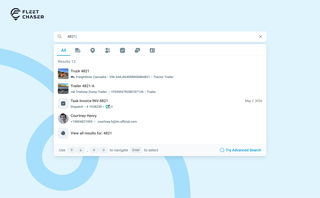
You shouldn't have to stop and figure out where to look for something in Fleet Chaser. You should be able to type its name and be on its page a second later. That's what we rebuilt Search around.
There are two searches now, and they're good at different things.
- Quick Search — the box in the top bar — is for getting somewhere fast.
- Advanced Search is for the times a name isn't enough: when you want to filter a list, search by something other than a name, or pull in archived records.
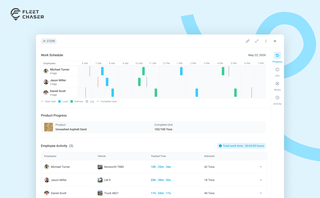
The Progress tab is the single place that shows how a task was actually worked — built from real entries drivers create as they go, not a summary someone reassembled later. A per-employee timeline, live per-product totals, and a filterable log of every load and delivery, with every edit kept on the activity log so corrections never erase the truth.

Managing multiple companies can be a challenge, especially when you constantly need to log in and out of different accounts. Previously, Fleet Chaser users were limited to managing just one company at a time. If you worked for more than one company, switching between them required logging out and logging in again, which was time-consuming and inconvenient.
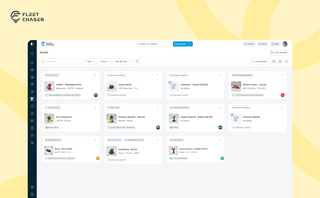
Assets is a new Console section for the things that are not vehicles. Give a tool a QR sticker, see where it was last scanned, and let your crew sign it out by filling a form on the phone.
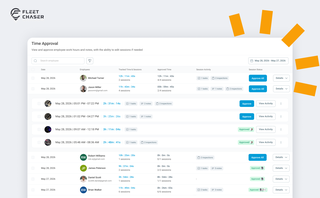
Time Approval now opens a full Session Details view of every shift before you sign off, and the new Pay Period screen turns approved hours into a click-to-pay workflow. Together they cover the whole stretch from clock-out to paycheck — without leaving Fleet Chaser.

You’ve got all this data coming from your fleet vehicles on maintenance, fuel, and mileage, but it feels like navigating through a maze with no map to guide you. You know tracking the right fleet metrics is crucial, but where do you even begin and what really matters? Read this article to learn about the key KPIs that tell you whether your fleet is on track or heading for trouble.

QR Codes are live in Fleet Chaser. Drivers scan a sticker on any vehicle to jump straight into the right inspection — no searching, no typing — and managers link a code to a vehicle right from the Console in seconds.