


VINs / 2025 / Bmw / M3 / WBS33HJ0XSFU39412
2025 Bmw M3
Vin:
WBS33HJ0XSFU39412
Type:
Sedan/Saloon
Year:
2025
Make:
Bmw
Model:
M3
Trim:
M3 Competition xDrive
Series:
3-Series
GVWR:
?

Engine
Fuel
Gasoline
Horse Power
523
Displacement(Liters)
3
Cylinders
6
Drive Trian
Type
AWD/All-Wheel Drive
Manufacturer
Manufacturer
BMW M GMBH
Plant City
MUNICH
Plant Country
GERMANY
Safety Features
Air Bag Location(Front)
1st Row (Driver and Passenger)
Air Bag Location(Sides)
1st and 2nd Rows
Seat Belts(All)
Manual
ABS (Antilock Braking System)
Standard
ESC (Electronic Stability Control)
Standard
Other Restraint System Info
Seat Belt: All positions / Pretensioners, Side Airbags, Head Inflatable Restraint: Front Row & Rear Outboard Driver-side, Rear Outboard Passenger-side
Do you manage a fleet?
FleetChaser will help you track:
- Mileage and maintenance
- Filling and expenses
- Real-time technical condition
Learn More
You'll never want to go back to how your fleet operated before Fleet Chaser
Our construction fleet management software makes your fleet management better, safer, and easier.
Construction and Fleet Management Articles
Telematics went from military GPS tracking to a powerful fleet management tool that prevents problems before they arise. Now, it’s all about control, confidence, and peace of mind for fleet owners. Want to see how telematics can transform your fleet? This article breaks down how modern telematics solutions work, real-life success stories, and the answers you’ve been looking for, like where your vehicles are and how to cut fuel costs. Feel free to dive in!
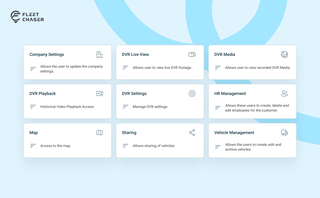
Permissions decide who on your team can see and do what. Admins can do everything; everyone else gets access through groups you build, so each role gets exactly what it needs and nothing more. Here is how to set it up in the Console under Employees.
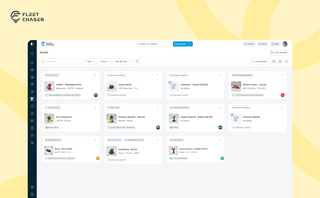
Assets is a new Console section for the things that are not vehicles. Give a tool a QR sticker, see where it was last scanned, and let your crew sign it out by filling a form on the phone.
Managing multiple companies can be a challenge, especially when you constantly need to log in and out of different accounts. Previously, Fleet Chaser users were limited to managing just one company at a time. If you worked for more than one company, switching between them required logging out and logging in again, which was time-consuming and inconvenient.

We are excited to introduce Fleet Chaser Chat, a brand-new feature designed to enhance communication and collaboration within your company. Whether you're coordinating fleet operations, managing employees, or discussing important updates, our chat functionality is built to support your needs.
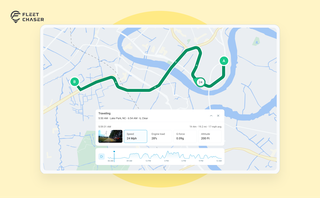
The map's History view is now a full replay of a vehicle's day. Pick a date to see the whole route, a timeline of every trip, stop, and idle, and replay it second by second with speed, engine, altitude, and camera data - plus power and battery health on the Details tab.

A construction dispatcher fields the same four calls all day — where are you, did you finish, when's the truck coming, which site. None are emergencies, but together they burn about two hours. Here's where the time goes — and the first call to move off the phone.
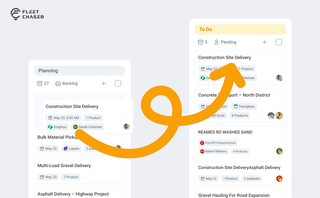
Most dispatchers still drag tomorrow's jobs onto the board every morning. Schedule Automation removes the ritual — set a rule on a workflow once, and planned tasks promote themselves onto the active board when their start time is near. It reacts when plans change, and you can still promote any job by hand in one click.

Some jobs are too big for one driver. Multi-assignee tasks let you put the whole crew on a single task — each person with their own vehicle, status, and progress — while loads and deliveries are counted automatically into one shared total.