



VINs / 2025 / Ford / Explorer / 1FMWK7GC6SGA01852
2025 Ford Explorer
Vin:
1FMWK7GC6SGA01852
Type:
Sport Utility Vehicle (SUV)/Multi-Purpose Vehicle (MPV)
Year:
2025
Make:
Ford
Model:
Explorer
Trim:
ST
GVWR:
?

Engine
Manufacturer
Ford
Model
GTDI
Fuel
Gasoline
Displacement(Liters)
3
Cylinders
6
Configuration
V-Shaped
Turbocharged
Yes
Drive Trian
Type
RWD/Rear-Wheel Drive
Manufacturer
Manufacturer
FORD MOTOR COMPANY
Plant Company
Chicago Assembly
Plant City
CHICAGO
Plant State
ILLINOIS
Plant Country
UNITED STATES (USA)
Safety Features
Air Bag Location(Front)
1st Row (Driver and Passenger)
Air Bag Location(Sides)
1st and 2nd and 3rd Rows
Seat Belts(All)
Manual
Brake System Type
Hydraulic
ABS (Antilock Braking System)
Standard
ESC (Electronic Stability Control)
Standard
Do you manage a fleet?
FleetChaser will help you track:
- Mileage and maintenance
- Filling and expenses
- Real-time technical condition
Learn More
You'll never want to go back to how your fleet operated before Fleet Chaser
Our construction fleet management software makes your fleet management better, safer, and easier.
Construction and Fleet Management Articles

We’re excited to announce that Fleet Chaser will be at the Charlotte Build Expo 2024 on December 11-12 at the Charlotte Convention Center. This is your chance to connect with us in person and learn how we’re helping SMBs in the construction industry take control of their fleet operations.
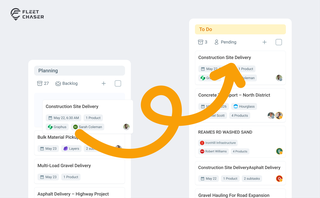
Most dispatchers still drag tomorrow's jobs onto the board every morning. Schedule Automation removes the ritual — set a rule on a workflow once, and planned tasks promote themselves onto the active board when their start time is near. It reacts when plans change, and you can still promote any job by hand in one click.
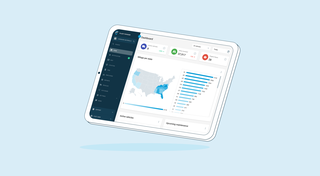
We’re thrilled to present new navigation in Fleet Chaser.
The new navigation not only streamlines your workflow, but also helps us roll out all the new features: notifications, dispatching, maintenance work orders, and more.
The new navigation is available in your user account, log in and check it out. 🌝
Hover over the toolbar or to the main workspace. Both sections will unfold, making it convenient to work in every one of them. The maps will also unfold, providing a larger view to see every little detail.
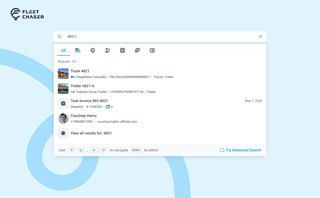
You shouldn't have to stop and figure out where to look for something in Fleet Chaser. You should be able to type its name and be on its page a second later. That's what we rebuilt Search around.
There are two searches now, and they're good at different things.
- Quick Search — the box in the top bar — is for getting somewhere fast.
- Advanced Search is for the times a name isn't enough: when you want to filter a list, search by something other than a name, or pull in archived records.
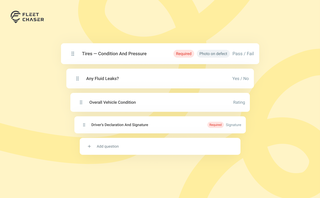
Forms is live in the Console, and the questions in it are yours. Write what your business needs to know, point it at the trucks it applies to, and publish.

Unexpected downtime presents a tangible setback for your fleet. Not only is your asset now off the road, but you have to tweak your operations and allocate finances to accommodate for it.

QR Codes are live in Fleet Chaser. Drivers scan a sticker on any vehicle to jump straight into the right inspection — no searching, no typing — and managers link a code to a vehicle right from the Console in seconds.
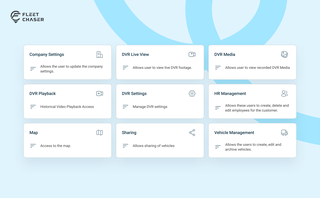
Permissions decide who on your team can see and do what. Admins can do everything; everyone else gets access through groups you build, so each role gets exactly what it needs and nothing more. Here is how to set it up in the Console under Employees.
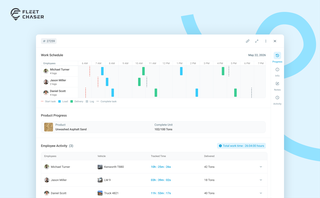
The Progress tab is the single place that shows how a task was actually worked — built from real entries drivers create as they go, not a summary someone reassembled later. A per-employee timeline, live per-product totals, and a filterable log of every load and delivery, with every edit kept on the activity log so corrections never erase the truth.