


VINs / 2025 / Peterbilt / 567 / 1XPCP4TX2SD676811
2025 Peterbilt 567
Vin:
1XPCP4TX2SD676811
Type:
Truck-Tractor
Year:
2025
Make:
Peterbilt
Model:
567
GVWR:
?

Engine
Manufacturer
Cummins
Model
ISX/ISX15/X15
Fuel
Diesel
Horse Power
430
Displacement(Liters)
14.9
Cylinders
6
Configuration
In-Line
Manufacturer
Manufacturer
PETERBILT MOTORS COMPANY
Plant City
DENTON
Plant State
TEXAS
Plant Country
UNITED STATES (USA)
Safety Features
Brake System Type
Air
Do you manage a fleet?
FleetChaser will help you track:
- Mileage and maintenance
- Filling and expenses
- Real-time technical condition
Learn More
You'll never want to go back to how your fleet operated before Fleet Chaser
Our construction fleet management software makes your fleet management better, safer, and easier.
Construction and Fleet Management Articles
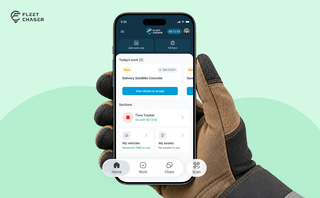
Every part of the Employee App's navigation moved: the bar along the bottom, the menu behind the hamburger, and the first screen your crew sees. The new one is built around the shift.
Managing a fleet has never been more challenging. Rising insurance premiums, unpredictable fuel costs, and growing maintenance costs combined with the need to keep equipment running efficiently on tight schedules…
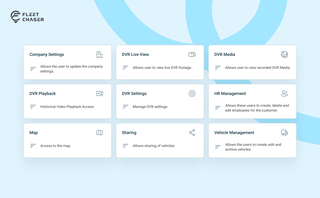
Permissions decide who on your team can see and do what. Admins can do everything; everyone else gets access through groups you build, so each role gets exactly what it needs and nothing more. Here is how to set it up in the Console under Employees.
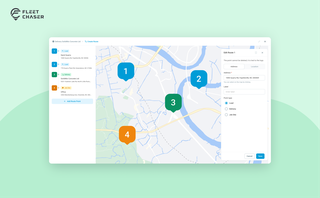
Route Planning turns a multi-stop job from "an address typed into the task description" into a real itinerary you draw on a map. Color-coded Load, Delivery, and Job Site checkpoints, drag to reorder, addresses or saved Locations, and an Employee App that walks the driver through the route in order — including the Job Site stops that hold the line until the work there is logged.
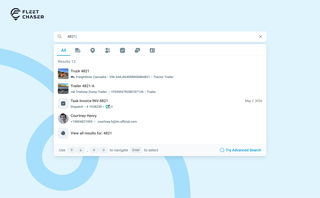
You shouldn't have to stop and figure out where to look for something in Fleet Chaser. You should be able to type its name and be on its page a second later. That's what we rebuilt Search around.
There are two searches now, and they're good at different things.
- Quick Search — the box in the top bar — is for getting somewhere fast.
- Advanced Search is for the times a name isn't enough: when you want to filter a list, search by something other than a name, or pull in archived records.
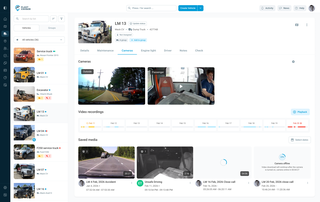
New Fleet Chaser Cameras experience: faster Playback, recording history by day, and Request video to save clips to Saved media for reliable downloads and proof storage.
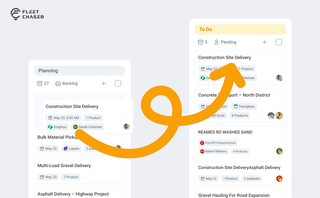
Most dispatchers still drag tomorrow's jobs onto the board every morning. Schedule Automation removes the ritual — set a rule on a workflow once, and planned tasks promote themselves onto the active board when their start time is near. It reacts when plans change, and you can still promote any job by hand in one click.
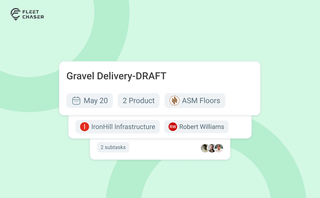
Setting up a real job takes a few minutes — a route, products, a crew, a schedule. Get interrupted halfway and that half-built task used to be gone. Drafts fix that: while you build a task, Fleet Chaser saves it automatically, so you can step away and pick up exactly where you left off. A draft stays private and silent — no task number, no notifications — until you press Create task.
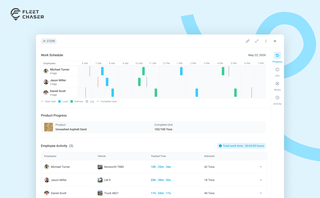
The Progress tab is the single place that shows how a task was actually worked — built from real entries drivers create as they go, not a summary someone reassembled later. A per-employee timeline, live per-product totals, and a filterable log of every load and delivery, with every edit kept on the activity log so corrections never erase the truth.