


VINs / 2019 / Ford / Edge / 2FMPK4G91KBB42987
2019 Ford Edge
Vin:
2FMPK4G91KBB42987
Type:
Sport Utility Vehicle (SUV)/Multi-Purpose Vehicle (MPV)
Year:
2019
Make:
Ford
Model:
Edge
Trim:
SE
GVWR:
?

Engine
Manufacturer
Ford
Model
2.0L GTDI w/premium fuel
Fuel
Gasoline
Fuel Injection Type
Stoichiometric Gasoline Direct Injection (SGDI)
Horse Power
245
Displacement(Liters)
2.0
Cylinders
4
Configuration
In-Line
Turbocharged
Yes
Drive Trian
Type
AWD/All-Wheel Drive
Axles
2
Wheels
4
Manufacturer
Manufacturer
FORD MOTOR COMPANY OF CANADA, LTD.
Plant Company
Oakville
Plant City
OAKVILLE
Plant State
ONTARIO
Plant Country
CANADA
Safety Features
Air Bag Location(Front)
1st Row (Driver and Passenger)
Air Bag Location(Sides)
1st and 2nd Rows
Seat Belts(All)
Manual
Brake System Type
Hydraulic
ABS (Antilock Braking System)
Standard
ESC (Electronic Stability Control)
Standard
Do you manage a fleet?
FleetChaser will help you track:
- Mileage and maintenance
- Filling and expenses
- Real-time technical condition
Learn More
You'll never want to go back to how your fleet operated before Fleet Chaser
Our construction fleet management software makes your fleet management better, safer, and easier.
Construction and Fleet Management Articles
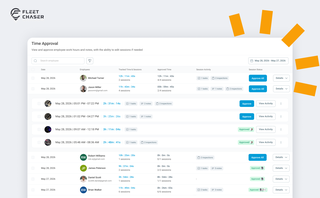
Time Approval now opens a full Session Details view of every shift before you sign off, and the new Pay Period screen turns approved hours into a click-to-pay workflow. Together they cover the whole stretch from clock-out to paycheck — without leaving Fleet Chaser.
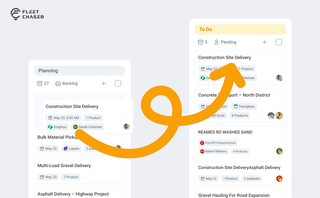
Most dispatchers still drag tomorrow's jobs onto the board every morning. Schedule Automation removes the ritual — set a rule on a workflow once, and planned tasks promote themselves onto the active board when their start time is near. It reacts when plans change, and you can still promote any job by hand in one click.
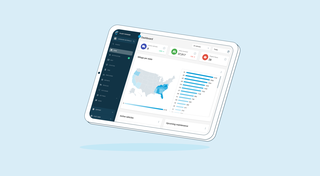
We’re thrilled to present new navigation in Fleet Chaser.
The new navigation not only streamlines your workflow, but also helps us roll out all the new features: notifications, dispatching, maintenance work orders, and more.
The new navigation is available in your user account, log in and check it out. 🌝
Hover over the toolbar or to the main workspace. Both sections will unfold, making it convenient to work in every one of them. The maps will also unfold, providing a larger view to see every little detail.
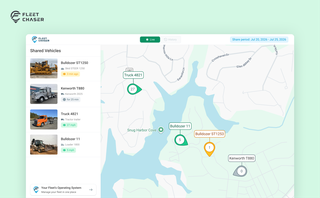
Live Share update: share a vehicle by link and let your customer see not just the live map, but the route history for the exact days you worked their site.
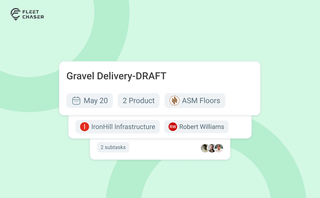
Setting up a real job takes a few minutes — a route, products, a crew, a schedule. Get interrupted halfway and that half-built task used to be gone. Drafts fix that: while you build a task, Fleet Chaser saves it automatically, so you can step away and pick up exactly where you left off. A draft stays private and silent — no task number, no notifications — until you press Create task.
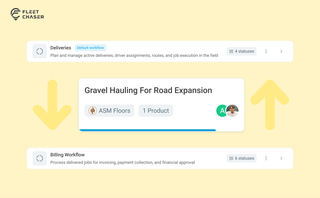
Work doesn’t stop at one team. Transfer in Fleet Chaser hands a task from one workflow to another in a single move, keeping every product, attachment, and activity-log entry attached. No re-typing, no lost history.
Fleet management requires the handling and analysis of numerous metrics and variables, which can quickly get out of hand and clutter your desk with piles of hard-to-access information. Compiling reports, communicating with employees, contractors, and drivers, etc., should be intuitive, all laid out in a simple, visual way.
This is where fleet management software comes in.
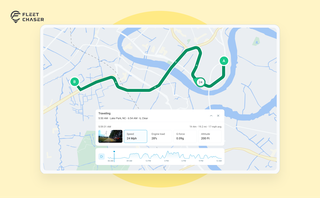
The map's History view is now a full replay of a vehicle's day. Pick a date to see the whole route, a timeline of every trip, stop, and idle, and replay it second by second with speed, engine, altitude, and camera data - plus power and battery health on the Details tab.
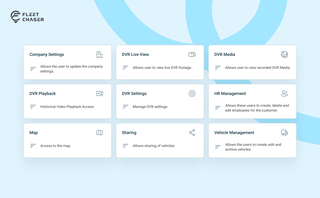
Permissions decide who on your team can see and do what. Admins can do everything; everyone else gets access through groups you build, so each role gets exactly what it needs and nothing more. Here is how to set it up in the Console under Employees.